Today i have one more trick
for facebook users.
It is about to automatic like
your friend’s status without
clicking onlike.
To know how is it possible you
have to follow some simple
steps..
STEP 1: First of all you have
login facebook using MOZILLA
FIREFOX .
STEP 2: Now install Autolike
add-on on your firefox.
STEP 3: Restart it after doing
second step.
STEP 4 br /> Now open
facebook.com and just scroll
down the page, you’ll see all
the status are automatically
liked.


New Facebook chat window
shows the both online and
offline friends in single
window and you have to scroll
down to see all online friends
or search for the specific
friend from the search area.
If you are irritated with this
chat box and wants to remove
it to show only online friends
then install Facebook Chat Fix
Google chrome extension in
chrome browser.

Not everyone wants to purchase a new laptop or netbook every couple of years. Just because your portable computer no longer sits at the cutting edge of the technological spectrum doesn’t mean you need to pawn a few possessions in order to keep up with the Joneses.Your laptop is as useful now as it was when you first purchased it, and with a few tips and tricks you can keep it that way for a while yet, saving you money in the process. Here are three indespensible tips for extending the life of your laptop.Save your batteryWhile you can’t put off the day when your laptop’s battery starts losing its charge, you can extend its life by following these tips. Start by being careful about where you leave your laptop – avoid extreme cold and heat, which means storing the laptop in a dry and cool place whenever possible.If you usually run your laptop from the mains, train yourself to run on batteries for two to three hours every week – this also helps extend its life. Also try to be more conservative with your power requirements when its in use.Start by opening the Power Options, by typing it into the Start Search box, to reduce power consumption through the various settings on offer. Disable wireless when it’s not needed, avoid using the DVD drive when running on batteries and disconnect all non-essential USB devices to further eke out time between battery drains.Start your PC quickerIf your PC is sluggish when it first starts, even after the desktop has appeared, it’s because too many programs are competing for system resources as they attempt to load with Windows.There are two ways to fix this, both of which can be achieved using a free program called Soluto. The program automatically scans your start-up routine and gives you options for ‘pausing’ (disabling) or delaying start-up programs along with recommendations based on what other Soluto users have done.Pause those programs you need, so they don’t waste time and resources starting with Windows, then delay the loading of other start-up programs so they don’t all make a grab for system resources the moment you log on.Soluto will automatically optimise when each delayed program starts, and you could shave minutes off your boot time with the minimum of fuss.Reclaim spaceOver time your PC starts to struggle with the load placed on it when you install new programs, build up temporary files, etc. There are a number of ways you can reclaim hard drive space and system resources. Start by going through the Programs and Features Control Panel, uninstalling those programs you no longer need.Next, install CCleaner and use it to clear your hard drive of redundant files, and finally defragment your hard drive using Puran Defrag Free which will stop fragmentation occuring in the future.


This is a great trick you can play on
your friends. To disable the display
of local or networked drives when
you click My Computer.
1.Go to start->run.Type
regedit.Now go to:
HKEY_CURRENT_USER\Software\Mic
rosoft\Windows\Curre ntVersion
\Policies\Explorer
Now in the right pane create a new
DWORD item and name it NoDrives
(it is case sensitive). Now modify
it’s value and set it to 3FFFFFF
(Hexadecimal) .Now restart your
computer. So, now when you click
on
My Computer, no drives will be
shown(all gone…). To enable
display of
drives in My Computer, simply
delete this DWORD item that you
created.
Again restart your computer.You
can now see all the drives again.
Magic.


Friends, As our PC/Laptops aremostimportant tools in our daily life in allaspects, there are lots of softwaresarerequired to maintain the system andenjoyyour PC/Laptop in real mean. But asweknow more the software you install,moreyour PC/Laptop system becomeslower dueto load on Processor. So its reallyimportantand most needed task to maintainoriginalspeeds and keep it hang free. Sotoday I amposting some tips to make your PC/Laptopfaster around 200% with simplefollow upsof below points. Just check it outand enjoyyour super fast PC/Laptop with us.1- Drivers-always keep your hardware driversupdated. Mainly graphics cardsdriver as itis most important driver for itsspeed.Always drivers tend to increasesystemspeed, so always keep your driverupdated.2-Minimizing-if you are working on manyprogram sametime, then minimizing programsthose arenot in use, helps to reduce Ramload andyou will get speed..3-Wallpapers/Themes-Big sizes Wallpapers and themesdefinitelyslow down your whole system, soalwaysuse simple wallpaper and themes tomaintain original speed.4- Restart only Windows-In starting your PC, hold down Shiftkeythat will only start Windows ratherthan thewhole system which will only take afraction of the time, then you will getyourPC/Laptop faster start in minimumtime5- Turn Off Animations-If you are using animationwallpaper thenturnoff it. First Go to Display Settingsin theControl Panel and switch to theEffects Tab.Then turn off Show WindowsContent WhileDragging and Smooth Edges onScreenFonts. This tip is also helpful withWindowsXP because of the various fade/scrolleffects.6-Resolutions-Resolution also plays vital role inspeedmatters, so try lowering your displayresolution. It helps you will get yourPCfaster7- Faster Internet Access-This is about temp and cookiesmemorythat are stored when you access anywebsite, If you use the Internet


Microsoft reserves 20%
of your available bandwidth for
their own purposes like Windows
Updates and interrogating your
PC etc
You can get it back:
Click Start then Run and type
” gpedit.msc ” without quotes.
This opens the group policy
editor.
Then go to:
–> Local Computer Policy
–> Computer Configuration
–> Administrative Templates
–> Network
–> QOS Packet Scheduler
–> Limit Reservable Bandwidth.
Double click on Limit Reservable
bandwidth.
It will say it is not configured,
but the truth is under the
‘Explain’ tab i.e.” By default, the
Packet Scheduler limits the
system to 20 percent of the
bandwidth of a connection, but
you can use this setting to
override the default.”
So the trick is to ENABLE
reservable bandwidth, then set it
to ZERO. This will allow the
system to reserve nothing, rather
than the default 20%.It works on
Win xp,7 as well.


Hi friends,
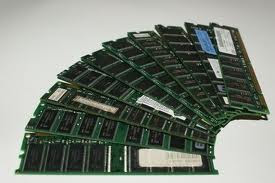
well, if you facing slow speed
problem due to low volume
ram,you dont want to buy new high
volume ram for your system,ok.then
i have a trick to take free some
amount of your ram,it will boost
your system performance.
ok lets comes to the topic
to do so-
>open notepad
>type :FREEMEM=SPACE(640000)
(: its not included)
>Save it as -freeRAM.vbs
>close the notepad
>look at your desktop,now you will
find a script on your desktop.
Double click on it always,when you
want to free some space of your
ram.
Design by Farakh | Blogger Theme by Farakh - By Farakh | Sheeraz